Showing posts with label latency. Show all posts

Friday, August 15, 2025

Understanding NUMA: Its Impact on VM Performance in ESXi

VMware ESXi hosts use Non-Uniform Memory Access (NUMA) architecture to optimize CPU and memory locality. Each NUMA node consists of a subset of CPUs and memory. Accessing local memory within the same NUMA node is significantly faster than remote memory access. Misaligned NUMA configurations can lead to latency spikes, increased CPU Ready Time, and degraded VM performance.


Key symptoms

The common symptoms for Virtual Machines (VMs) on ESXi that have a misconfigured or misaligned Non-Uniform Memory Access (NUMA) configuration primarily manifest as performance degradation and latency. The main issue caused by NUMA misalignment is that the VM's vCPUs end up frequently having to access memory that belongs to a different physical NUMA node on the ESXi host (known as Remote Access), which is significantly slower than accessing local memory.

The resulting symptoms for the VM include:

  • Overall Slowness and Unresponsiveness: Services and applications running inside the guest OS may respond slowly or intermittently. The entire VM can feel sluggish.

  • High CPU Ready Time (%RDY): This is the most critical ESXi-level metric. CPU Ready Time represents the percentage of time a VM was ready to run but could not be scheduled on a physical CPU. High %RDY times (often above 5% or 10%) can indicate that the VM's vCPUs are struggling to get scheduled efficiently, which happens when they are spread across multiple NUMA nodes (NUMA spanning).

  • Excessive Remote Memory Access: When a VM consumes more vCPUs or memory than is available on a single physical NUMA node, a portion of its memory traffic becomes "remote." You can check this using the esxtop utility on the ESXi host.

Common misconfigurations


Misalignment often occurs when the VM's vCPU and memory settings exceed the resources of a single physical NUMA node on the host. Common causes include:

  • Over-Sized VM: Allocating more vCPUs than the physical cores available in a single physical NUMA node or allocating more memory than the physical memory on a single NUMA node.
  • Hot-Add Features: Enabling CPU Hot-Add or Memory Hot-Add can disable vNUMA (Virtual NUMA) for the VM, preventing the VMkernel from presenting an optimized NUMA topology to the guest OS.
  • Incorrect Cores per Socket Setting: While vSphere 6.5 and later are smarter about vNUMA, configuring the Cores per Socket value manually in a way that doesn't align with the host's physical NUMA topology can still lead to poor scheduling and memory placement, particularly when licensing dictates a low number of virtual sockets.
  • Setting VM Limits: Setting a memory limit on a VM that is lower than its configured memory can force the VMkernel to allocate the remaining memory from a remote NUMA node.

Check NUMA assignments in ESXi

  • SSH into the ESXi node.
  • Issue the esxtop command and press m for memory view, then press f to enable the fields, G to enable NUMA information.

  • You should be able to view the NUMA related information like NRMEM, NLMEM, and N%L.
    • NRMEM (MB): NUMA Remote MEMory
      • This is the current amount of a VM's memory (in MB) that is physically located on a remote NUMA node relative to where the VM's vCPUs are currently running.
      • High NRMEM indicates NUMA locality issues, meaning the vCPUs must cross the high-speed interconnect (like Intel's QPI/UPI or AMD's Infinity Fabric) to access some of their data, which results in slower performance.
    • NLMEM (MB): NUMA Local MEMory
      • This is the current amount of a VM's memory (in MB) that is physically located on the local NUMA node, meaning it's on the same physical node as the vCPUs accessing it.
      • The ESXi NUMA scheduler's goal is to maximize NLMEM to ensure fast memory access.
    • N%L: NUMA % Locality
      • This is the percentage of the VM's total memory that resides on the local NUMA node.
      • A value close to 100% is ideal, indicating excellent memory locality. If this value drops below 80%, the VM may experience poor NUMA locality and potential performance issues due to slower remote memory access.
  • Issue the esxtop command and press v to see the virtual machine screen.
  • From the virtual machine screen note down the GID of the VM under consideration, and press q to exit the screen.
  • Now issue the sched-stats -t numa-clients command. This will list down NUMA details of the VM. Check the groupID column to match the GID of the VM.
  • For example, the GID of the VM I am looking at is 7886858. This is a 112 CPU VM which is running on an 8-socket physical host.

  • You can see the VM is spread/ placed under NUMA nodes 0, 1, 2, and 3.
  • The remoteMem is 0, for each of these NUMA nodes, which means they are accessing all the local memory of the NUMA node.
  • To view physical NUMA details of the ESXI you can use sched-stats -t numa-pnode command. You can see this server has 8 NUMA nodes.
  • To view the NUMA latency, you can use the sched-stats -t numa-latency command.

Verify NUMA node details at guest OS


Windows
  • Easiest way is to go to Task Manager - Performance - CPU
    • Right click on the CPU utilization graph and select Change graph to - NUMA nodes
    • If there only one NUMA node, you may notice the option as greyed out.
  • To get detailed info you can consider using the sysinternals utility coreinfo64.

Linux
  • To view NUMA related details from the Linux guest OS layer, you can use the following commands:
lscpu | grep -i NUMA
dmesg | grep -i NUMA

Remediation


The most common remediation steps for fixing Non-Uniform Memory Access (NUMA) related performance issues in ESXi VMs revolve around right-sizing the VM to align its resources with the physical NUMA boundaries of the host.

The primary goal is to minimize Remote Memory Access (NRMEM) and maximize Local Memory Access (N%L). The vast majority of NUMA issues stem from a VM's resource allocation crossing a physical NUMA node boundary.

  • Right-Size VMs: Keep vCPU count within physical cores of a single NUMA node.
  • Evenly Divide Resources: For monster/ wide VMs, ensure the total vCPUs are configured such that they are evenly divisible by the number of physical NUMA nodes they span.
    • Example: If a VM needs 16 vCPUs on a host with 12-core NUMA nodes, configure the vCPUs to be a multiple of a NUMA node count (e.g., 2 sockets $\times$ 8 cores per socket to create 2 vNUMA nodes, aligning with 2 pNUMA nodes).
  • Cores per Socket Setting (Important for older vSphere/Licensing): While vSphere 6.5 and later automatically present an optimal vNUMA topology, you should still configure the Cores per Socket setting on the VM to create a vNUMA structure that aligns with the physical NUMA boundaries of the host. This helps the guest OS make better scheduling decisions.
  • Disable VM CPU/ Memory Hot-Add: Plan capacity upfront.

NUMA awareness is critical for troubleshooting and optimizing VM performance on ESXi. Misconfigured NUMA placements can severely impact latency-sensitive workloads like databases and analytics. Regular checks at both the hypervisor and guest OS layers ensure memory locality, reduce latency, and improve efficiency.

References


Hope it was useful. Cheers!

Friday, September 6, 2024

Revisiting Storage Performance Benchmarking

Few years ago, I had the opportunity to explore the intricacies of storage performance benchmarking using tools like FIO, DISKSPD, and Iometer. Those studies provided valuable insights into the performance characteristics of various storage solutions, shaping my understanding and approach to storage performance analysis. As I prepare for an upcoming project in this domain, I find it essential to revisit my previous work, reflect on the lessons learned, and share my experiences. This blog post aims to provide a comprehensive overview of my benchmarking journey and the evolving landscape of storage performance studies.


Recent advancements 

The field of storage technology has seen significant advancements in recent years. The rise of NVMe and storage-class memory technologies has also redefined high-end storage performance, offering unprecedented speed and efficiency. These advancements highlight the dynamic nature of storage performance benchmarking and underscore the importance of staying updated with the latest tools and methodologies.

Challenges

Benchmarking storage performance is not without its challenges. One of the primary difficulties is ensuring a consistent and controlled testing environment, as variations in hardware, software, and network conditions can significantly impact results. Another challenge is the selection of appropriate benchmarks that accurately reflect real-world workloads, which requires a deep understanding of the specific use cases and performance metrics. Additionally, interpreting the results can be complex, as it involves analyzing multiple metrics such as IOPS, throughput, and latency, and understanding their interplay. These challenges necessitate meticulous planning and a thorough understanding of both the benchmarking tools and the storage systems being tested.

Prior works

Following are some of the articles on storage benchmarking that I’ve published in the past:

Custom storage benchmarking framework

While there are numerous storage benchmarking tools available, such as VMFleet and HCIBench, I wanted to highlight a custom framework I developed a few years ago. Here are some reasons why we created this custom tool:

  • Great learning experience: It provided valuable insights into how things work.
  • Customization: Being a custom framework, it allows you to add or remove features as needed.
  • Flexibility: You can modify multiple parameters to suit your requirements.
  • Custom test profiles: You can create tailored storage test profiles.
  • No IP assignment needed: There’s no need for IP assignment or DHCP for the stress test VMs.
  • Centralized log collection: It offers centralized log collection for detailed analysis.


You can access the scripts and readme on my GitHub repository:

https://github.com/vineethac/vsan_cluster_storage_benchmarking_with_diskspd


Here is an overview.

  • Profile Manifest: All storage test profiles are listed in profile_manifest.psd1. You can define as many profiles as you want.
  • VM Template: A Windows VM template should be present in the vCenter server.
  • Benchmarking Manifest: Details of vCenter, cluster name, VM template, number of stress test VMs per host, etc., are provided in benchmarking_manifest.psd1.
  • Deploy Test VMs: deploy_test_vms.ps1 will deploy all the test VMs with pre-configured parameters.
  • Start Stress Test: start_stress_test.ps1 will initiate the storage stress test process for all the profiles mentioned in profile_manifest.psd1 one by one.
  • Log Collection: All log files will be automatically copied to a central location on the host from where these scripts are running.
  • Cleanup: Use delete_test_vms.ps1 to clean up the stress test VMs from the cluster.


Note:
 These scripts were created about five years ago, and I haven’t had the opportunity to refactor them according to current best practices and new PowerShell scripting standards. I plan to enhance them in the coming months!

This overview should provide you with a clear understanding of the overall process and workflow involved in the storage benchmarking process. I hope it was useful. Cheers!

Saturday, April 18, 2020

vSAN performance benchmarking

In this article, I will explain briefly on performance benchmarking considerations, factors affecting performance, and some of the best practices. We do performance benchmarking to understand the capabilities and bottlenecks of a system. When I say system it could be a storage system, CPU, GPU, network switch, etc. Now let's consider a VMware vSAN cluster infrastructure. It includes multiple components and each of these contributes to the performance. In this case, the vSAN cluster is the solution under test. We will have to conduct performance benchmarking to understand the storage performance behavior of the cluster. When I say storage behavior it includes the IOPS, latency, and throughput that the cluster can produce under varying loads.

The goal of benchmarking
  • Identify bottlenecks
    • Hardware bottleneck
    • Software bottleneck
    • Application bottleneck
  • Compare tradeoffs
  • Manage expectations
  • Make decisions

Usually in a real-world scenario, benchmarking will be done once the cluster is deployed/ ready and before starting to host production workload on top of it. As these benchmark values define the performance maximums it will be helpful to decide on when to scale or upgrade the cluster before it hits a bottleneck.

Fundamental factors of vSAN performance

Server hardware
  • Compatibility as per vSAN HCL
Host
  • Number of hosts in the cluster
  • Power settings
  • CPU - number of cores and frequency 
Storage
  • Hybrid or All-flash
  • NVMe, SAS, or SATA
  • Number of disk groups per host
  • Storage controller configuration
  • Compatibility of hardware devices as per vSAN HCL
Network
  • 10/ 25/ 40 GbE
  • MTU 
  • LAG
SPBM policy
  • FTT (Failures To Tolerate)
  • FTM (Mirroring/ Erasure coding)
  • Thin or Thick provision
Security
  • Encryption
  • Checksum
Other
  • Stripe width
  • Flash read cache reservation
  • IOPS limit for object
All of the above factors will affect performance. So you should know the benefits and tradeoffs. 

Benchmarking methodology

Image credit: VMware

Storage benchmarking tools

IO load generation tools
Application-specific tools
  • HammerDB (MSSQL, Oracle)
  • Jetstress (MS Exchange)
  • SLOB (Oracle)
  • DBGen (MSSQL, Oracle)

Best practices

  • Understand the production performance metrics.
  • Test what you plan to deploy.
  • Workload modeling.
  • Plan for use case testing.
  • Choose an appropriate size for benchmarking
  • Choose the right tool.
  • Pre-allocate blocks while testing.
  • Test for a longer time duration.
  • Deploy multiple VMs with multiple VMDKs.

References

Monday, October 7, 2019

VMware PowerCLI 101 - Part5 - Real time storage IOPS and latency

It is very important to monitor and analyze the performance of storage subsystem components as it direcly affects the application performance. In this article, I will briefly explain how to use PowerCLI to get real time storage IOPS and latency of the following: 

              • Virtual disk
              • Datastore
              • Disk/ LUN 
              • Storage adapter
              • Storage path
Connect to vCenter server using:
Connect-VIServer <IP address of vCenter>

To understand the list of all available stats for a specific entity, you can use Get-StatType. For example, to list all real time stats for a virtual machine you can use:
Get-StatType -Entity <VM name> -Realtime | sort

Virtual disk

To get real-time IOPS and latency of all virtual disks of a VM named 'lustre01':
Get-Stat -Entity lustre01 -Realtime -MaxSamples 1 -Stat virtualDisk.numberReadAveraged.average,virtualDisk.numberWriteAveraged.average,virtualDisk.totalReadLatency.average,virtualDisk.totalWriteLatency.average | sort Instance,MetricId | select MetricId, Value, Unit, Instance


Datastore

To get real-time IOPS and latency of a datastore (with Uuid: 5bea72bb-5d72ed6a-1d85-246e96792988) from an ESXi host (IP: 192.168.105.10):
Get-Stat -Entity 192.168.105.10 -Stat datastore.numberReadAveraged.average,datastore.numberWriteAveraged.average,datastore.totalReadLatency.average,datastore.totalWriteLatency.average -Realtime -MaxSamples 1 -Instance 5bea72bb-5d72ed6a-1d85-246e96792988 | Select MetricId, Value, Unit, Instance | Sort-Object MetricId

Note: You can get Uuid of a datastore using (Get-Datastore vol01).ExtensionData.Info.Vmfs.Uuid


Refer my article "Real time VMware datastore performance monitoring using PowerShell" for monitoring the real time performance statistics of multiple shared VMFS datastores which are part of a multi-node VMware ESXi cluster.

Disk/ LUN

To get real-time IOPS and latency of a disk (eui.387de1af35b93f6ff0a9bef000000000): 
Get-Stat -Entity 192.168.105.10 -Disk -Realtime -Instance eui.387de1af35b93f6ff0a9bef000000000 -MaxSamples 1 -Stat disk.numberWriteAveraged.average,disk.numberReadAveraged.average,disk.totalWriteLatency.average,disk.totalReadLatency.average | Select MetricId, Value, Unit, Instance


Storage adapter

To get real-time IOPS and latency of a storage adapter: 
Get-Stat -Entity 192.168.105.10 -Realtime -MaxSamples 1 -Stat storageAdapter.totalReadLatency.average, storageAdapter.totalWriteLatency.average, storageAdapter.numberReadAveraged.average, storageAdapter.numberWriteAveraged.average -Instance vmhba64 | Select-Object MetricId, Value, Unit, Instance | Sort-Object MetricId


Storage Path

To get real-time IOPS and latency of a storage path:
Get-Stat -Entity 192.168.105.10 -Realtime -MaxSamples 1 -Stat storagePath.totalReadLatency.average, storagePath.totalWriteLatency.average, storagePath.numberReadAveraged.average, storagePath.numberWriteAveraged.average -Instance fc.300fb123ba76519c:b436362bae5b217-fc.300fb123ba76519c:b436362bae5b217-eui.387de1af35b93f6ff0a9beec00000001 | Select MetricId,Value,Unit,Instance | Sort-Object MetricId


Wednesday, September 18, 2019

vRealize Operations Manager 7.5 - Part7 - vSAN monitoring and troubleshooting

In this article, I will walk you through how to use vROps for vSAN monitoring and performance troubleshooting. It is always recommended to follow a systematic and established approach to troubleshoot problems. Before we start here is a link to one of my article which explains the scientific method of troubleshooting

Given below are some very useful content from VMware that talks about vSAN performance troubleshooting.

Performance Troubleshooting – Understanding the Different Levels of vSAN Performance Metrics
Performance Troubleshooting – Which vSAN Performance Metrics Should be Looked at First?
Troubleshooting vSAN performance

Performance is all relative and sometimes performance issues can be because of the wrong perception. So it is always good to validate it with actual numbers. Compare with a benchmark value or verify all relevant metrics before and after the issue has been reported. Now assume there is a storage issue in the environment. Given below is a systematic order to approach the problem, identify it correctly, isolate it and finally take necessary steps to resolve it. 

vSAN performance troubleshooting approach
  1. Infrastructure: Perform vSAN cluster health check
  2. Virtual machine level: Is there a storage issue observed at the application level?
  3. Virtual machine level: Is there a storage issue per vmdk level?
    1. Latency (vmdk)
    2. IOPS (vmdk)
  4. Cluster level: Look at operations overview at the cluster level
    1. Latency
    2. IOPS
  5. Host level: Identify the IO type that has a performance issue
    1. Read IO
    2. Write IO
  6. Host level: Collect/ analyze metrics of the storage objects
    1. Storage adapter (vmhba)
    2. Disk groups
    3. Cache disk
    4. Capacity disk 
  7. Host level: Collect/ analyze metrics of the network objects
    1. Physical adapter (vmnic)
    2. vSAN network (vmk)
At this point, you have a clearly defined workflow in identifying and resolving the issue. So let's have a look at the various vROps dashboards that provides you end to end visibility of your stack and helps you easily identify and isolate the issue. If there is a problem or abnormality or unusual performance behavior in your vSAN environment, vROps will notify that with alerts based on various metric values it monitors using its inbuilt intelligence and analytics capabilities. Alert generation is based on symptom and alert definitions and this will finally affect the health, risk or efficiency badge of the respective object. Status of the badges, symptoms, alerts, recommendations, historical performance data and time stamps will be very useful in the process of troubleshooting and quickly finding the actual problem.

Infrastructure: Perform vSAN cluster health check

As a starting point, you can make use of integrated health checks from vCenter to verify your vSAN infrastructure.


To understand in-depth about vSAN health checks refer: https://vxplanet.com/2019/01/30/vsan-health-checks-explained-part-1/

Now to get a high-level overview, let's have a look into the health, risk and efficiency badges of vSAN cluster in vROps. Please refer to this blog article from VMware to get a detailed understanding of badges.

Health badge


Risk badge


Alerts


Virtual machine level: Is there a storage issue observed at the application level?

You can make use of application aware operations feature in vROps 7.5 to get full stack visibility. Given below are the list of applications that can be currently monitored using vROps 7.5.


Reference to application aware monitoring: https://blogs.vmware.com/management/2019/05/application-aware-operations-with-vrealize-operations-7-5.html


If your application is not supported or if application aware monitoring is not configured, then you can go with native application performance counters/ methods to identify whether the application itself is observing/ affected by storage latency, low IOPS, etc.

Virtual machine level: Is there a storage issue per vmdk level?

As a first step, you can use the "Troubleshoot a VM" dashboard to understand and track resource usage of a virtual machine.

Troubleshoot a VM - a

Troubleshoot a VM - b

Select the VM object to get more details. Below screenshot shows metrics related to a virtual disk.


Cluster level: Look at operations overview at the cluster level

vSAN operations overview dashboard


Troubleshooting vSAN dashboard

Troubleshooting vSAN - a

Troubleshooting vSAN - b

Troubleshooting vSAN - c

Host level: Identify the IO type that has a performance issue

Host level storage metrics


Host level: Collect/ analyze metrics of the storage objects

Metrics related to a disk group


Read cache and write buffer metrics of a disk group


Performance metrics of a capacity disk


Host level: Collect/ analyze metrics of the network objects

Metrics related to vmnic (physical NIC) and vSAN vmk


Metrics related to network objects will help to determine whether the performance issue is due to resource contention, network misconfiguration, hardware issue, etc.  


References:


Saturday, July 20, 2019

vRealize Operations Manager 7.5 - Part6 - Adding new symptoms and alert definitions

In my previous post, I tried to explain briefly about the alerting aspects in vROps and overall workflow of the alerting process. In this post, I will explain how to create custom symptom definitions and alert definitions based on a scenario. 

Scenario


User is running some latency-sensitive business-critical applications on the vSAN cluster. Below are the symptoms that he would like to define and alerts should be produced for the same and these should affect the "Efficiency" badge of the vSAN cluster object. 

  1. Warning - when vSAN Cluster Read Latency is greater than 1 ms
  2. Critical - when vSAN Cluster Read Latency is greater than 2 ms
  3. Warning - when vSAN Cluster Write Latency is greater than 2 ms
  4. Critical - when vSAN Cluster Write Latency is greater than 3 ms 
Sample screenshot of vSAN environment efficiency badge 

Step1: Add symptom definitions


Go to Alerts - Symptom Definitions - Click Add (+)


Select base object type: vSAN Cluster
Select the metric "Read Latency (ms) - double click on it twice so that you can define both warning and critical symptoms.


Provide symptom definition name, criticality and numeric value as required and click Save.


Now you can see the two symptoms which you have just created.


Similarly, create symptom definitions for vSAN Cluster Write Latency.


All 4 symptom definitions are created now.


Step2: Add alert definitions


Next step is to add alert definitions.

Go to Alerts - Alert Definitions - Click Add (+)

  • Provide a name and description.
  • Click on Base Object Type and select "vSAN Cluster"

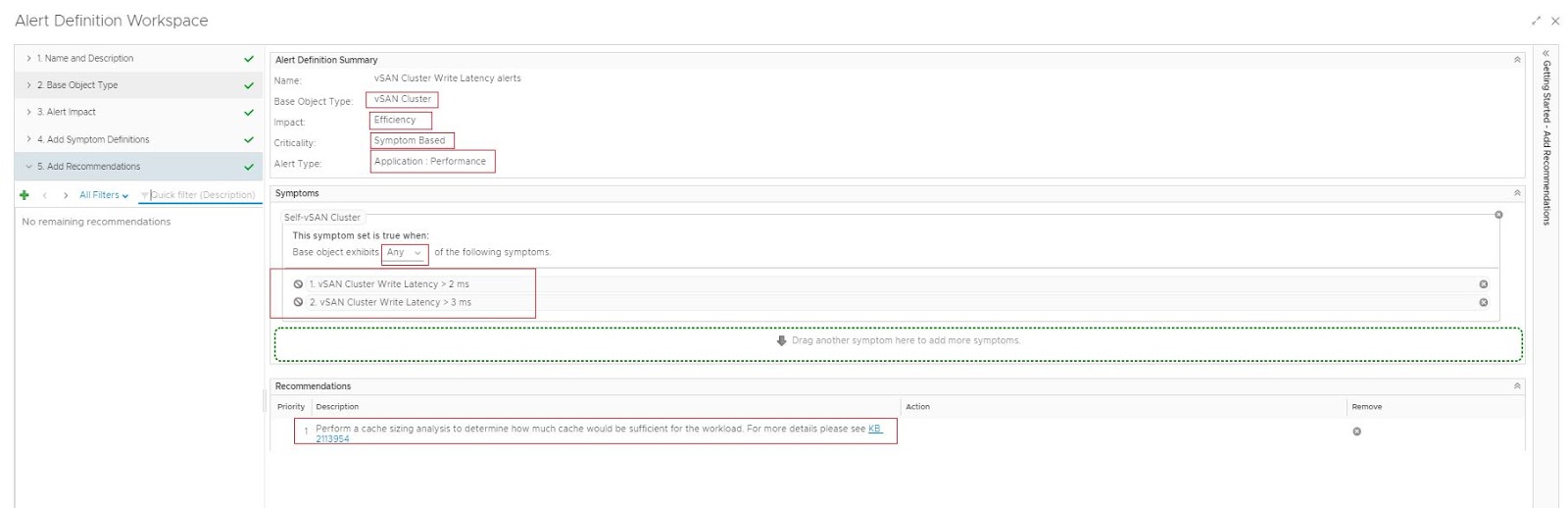
  • Click on Alert Impact and select Impact: Efficiency (this means this alert definition will affect the efficiency badge)

  • Click Add Symptom Definitions (here you have to search for the symptom definitions that were created earlier and attach to this alert definition)

  • Drag both symptom definitions to the right-hand side as shown in the screenshot (make sure to choose "Any" as highlighted below)

  • Click Add Recommendations (here I added some sample recommendations) and click save

Similarly, create an alert definition for vSAN Cluster Write Latency alerts.


Now both alert definitions are created.


Let's verify current vSAN cluster Read/ Write latency in the dashboard.


As you can see above, Cluster I/O Write Latency is 2.67 ms which is greater than the warning threshold we defined. This means a warning alert should be produced and also should affect the efficiency badge of the vSAN Cluster object. An alert has already produced for this and can be seen in the second widget. It also shows the efficiency badge color is now yellow. If you click on the alert it will provide more details on the same.


If you browse the environment tab you can also notice that the efficiency badge of vSAN Cluster has turned to yellow.


Please feel free to share if this was useful. Cheers!

Related posts